Welcome to (The Occasional) Photo Tip of the Day! Please also visit my main site jeffwignall.com. Text and photographs Copyright 2013 Jeff Wignall.

"We are tied to the ocean. And when we go back to the sea, whether it is to sail or to watch - we are going back from whence we came."


John F Kennedy


Tuesday, June 11, 2013

Greg Hartford's Acadia Magic

If you've been thinking of taking a summer vacation in New England but haven't decided on a destination yet, let me be the first to suggest a visit to Acadia National Park on Mount Desert Island in Maine. Acadia was the first first national park east of the Mississippi and it's really the crown jewel of wild New England places. The park includes a 27-mile scenic drive that provides some of the most spectacular, rugged and pristine ocean views anywhere on the planet. From sandy beaches to sheer granite cliffs, this park is amazing and the drive will provide a front-row seat to all of this beauty.

One of the nice things about the drive is that there are lots of places to pull over so that you can get out and explore and take pictures to your heart's content. You can really travel at your own pace--even when it's relatively crowded (and it is pretty busy in summer, trust me). If you want to leave the crowds behind, however, there are also 45 miles of "Carriage" roads that are open to bikers and hikers, as well as another 115 miles of hiking trails. The vehicle fee to get into the park is just $20/week--a bargain.

Photographer Greg Hartford has produced a wonderful site about the park called AcadiaMagic and it's the perfect place to start planning your trip. Greg is a lifelong resident of Maine and has spent much of his photo career capturing amazing photos of Acadia. Greg's photos are just beautiful and they'll give you a great appreciation for the beauty of Acadia. In addition to all of the stunning photography, Greg has also put together an extremely informative site for travelers--easily the most comprehensive site about Acadia on the web. There is a ton of information on dining, lodging, shopping and sightseeing.

If Greg's photos don't inspire you to want to visit Acadia, nothing will. I'm not sure if he gives private photo tours or not, but you might want to ask him--contact info is on the site. (Photo courtesy of Greg Hartford. Copyright 2013 Greg Hartford)

Thursday, May 23, 2013

The Peaceful Beauty of Twilight

I live near the water and twilight is one of my favorite times of day--it's a very peaceful, calm time of day and the breezes have died down a bit so that the water surfaces are generally much more calm. Also, after the sun has set there is often a pretty afterglow in the sky. In this scene you can just see slight tinges of pink. That pink was actually stronger a few minutes before, but I wasn't set up in time to capture it. A friend of mine on Facebook commented on the geometry of this shot and I have to agree that when I shot it I placed that larger foreground boat carefully between the others. I think that being careful not to let the boats overlap helps to reveal the space of the scene and also helps maintain a feeling of balance

The photo was shot with a Nikon D90 and a 70-300mm f/5.6 Nikkor zoom. The exposure was 1/60 second at f/8, ISO 320. I captured it in both RAW and jpeg, but this is from the jpeg version--I will play with the white balance much more when I work it from the RAW file.

Tuesday, May 7, 2013

Ferris Wheel Fun at the Carnival

If there is one thing in the world that I'm highly attracted to visually, it's the combination of color, light and motion--and nothing combines those three elements better than a Ferris wheel. I've been photographing them since I was a about 16 and stopped one night at a carnival in a nearby town to take some snapshots. While I was shooting, a cop who was patrolling the carnival stopped to chat and asked me what shutter speed I was using. At the time I was just trying to record an image of the wheel and hadn't thought much (or at all) about the motion of the wheel. I was shooting as I always did, just using a shutter speed that was slow enough to record the Ferris wheel when it was stopped--probably 1/30 second or so. This cop (who told me he did a lot of photography for his department--in Shelton, Connecticut, by the way) suggested that since I was using a tripod I should try to capture some motion shots and experiment with long exposures--a second or more. And so I did. I shot a whole roll (Ektachrome slides in those days) of photos at between one and four or five seconds.

When I got that film back from the lab, I was completely blown away. Instead of just still shots of a pretty ride, I had these intense swirls of color and light. Wow, cool! Many of the shots were grossly overexposed (what I wouldn't have given for an LCD back then!). Ever since then I've been drawn like a moth to the light at carnivals and I think of that nice cop every time I shoot ride photos. Many of these photos have been published in my books and, in fact, the cover of my book Exposure Photo Workshop (the first edition) features a motion shot of a Ferris wheel (the 2nd edition features a shot of a different carnival ride).

Getting shots like the ones here is easy--and I didn't even use a tripod for the second shot, I was just resting the camera (a Nikon D90) on the roof of my friend Pam's car. The exposure for the second shot was about 1/8 second at f/8 and for the first shot above it was a full second at f/22, on a Manfrotto tripod. I shot both nights at ISO 200 to preserve image quality (though I did bump up the ISO for a few shots as an experiment). I shot hundreds of photos over the course of the two nights, endlessly experimenting with shutter speeds. There are three things that will effect the outcome of your photos: the shutter speed that you're using, the  speed of the wheel and the color patterns since the lights are almost always changing. Also, these days one wonderful change in the wheels is that most use LED lights which are vastly brighter and more colorful--a really tremendous improvement for photographers. I also did some "zooming" shots both nights, racking the zoom during the long exposures and I'll post a few of those in a few days.

Finally, one thing you should do is experiment with your white balance. I set my white balance to tungsten lighting and then used the color picker graphic (available on most dSLR cameras) to custom set the balance. I had to play with the setting many times to get it to record the colors of the wheel accurately (and you're never really sure until you see the images on a bigger screen--which is partly why I went back the second night, to work more with white balance). Of course, I always shoot in RAW (and jpeg simultaneously most of the time) so that I can play with the white balance after the fact, as well. Both of the images here are exactly as they came out of the camera--I did nothing to the color balance other than set the black point for the background using curves (and you should be sure you have a good rich Dmax to set off the colors nicely). They are not sharpened either, though you could do this to crisp up the edges if you wanted.

Fun stuff, right? Well summer is here, so get our your tripod and make sure your batteries are charged (long exposures use a lot of battery power) and go have fun at the carnival.

Friday, May 3, 2013

Happy 94th Birthday to Folk Legend Pete Seeger


The wondrous singer/songwriter/activist/storyteller/ecologist Pete Seeger turned 94 on Friday May 3rd. Happy Birthday to you Pete! Thanks for all you've done for music, for art, for the Earth and for humanity.

Tuesday, April 9, 2013

Alaska bear photo workshop: Last-minute opening

If you've ever fantasized about photographing bears in Alaska, this may be your opportunity. Due to a cancellation, Alaska photographer Ron Niebrugge has an unexpected opening for one more photographer for his August 7 - 13, 2013 (7 days/6 nights) bear photo workshop in Lake Clark National Park. Ron is an Alaskan native (and resident) and is one of the country's premiere wilderness and wildlife photographers; I profiled him for Outdoor Photographer magazine a few years back.

On his blog Ron writes: "In August the spring cubs are a little bigger and a bit more independent.  The possibility of photographing fishing bears; bears chasing, catching and eating salmon is always high in August as the salmon start running. Another opportunity is perching Puffin. In August the Puffin are busy feeding chicks, and will be flying to and from their burrows with mouths full of needlefish."

Time magazine said of Ron's tour: "This tour around Lake Clark National Park promises bear sightings, and thanks to a precision-timed itinerary, they're prolific: brown bears walking, sleeping and feeding on salmon." 

I can't think of a more exciting way to spend a week than photographing brown bears in Alaska with a master wildlife photographer. According to Ron airfares to Alaska area also extremely cheap right now. Life is short, have fun, go photograph bears!

(Photos courtesy of Ron Niebrugge)


Monday, April 1, 2013

Choosing a New Digital Camera--Nice Guide from Time Magazine

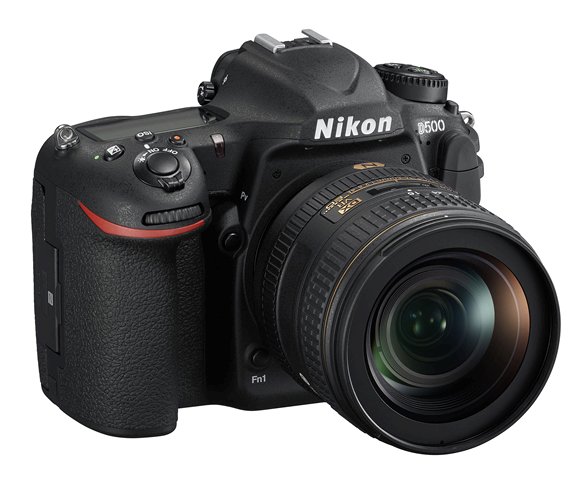
Probably the one question that I'm asked most about digital photography (particularly from Facebook friends) is: What's the best digital camera to buy? I'm always happy to hear the question because it shows that at least some people realize that there are cameras beyond the cell-phone camera in their pocket (an important warning about those in a minute). It's often a tough question to answer because the models seem to change so quickly and also, not all of the best digital cameras are made by the traditional camera makers (Canon, Olympus, Nikon, etc.). Companies like Samsung and Sony, better known as electronics manufacturers than camera companies, make some very respectable cameras--which isn't surprising since (lens design aside) all digital cameras are, in fact, electronic gizmos.

The first thing you have to consider, of course, is price. How much are you willing to invest in your photography? You can get a great compact digital camera for well under $150 and probably even under $100 if you aren't looking for too many features. You can get a great digital advanced zoom camera (essentially an advanced compact with a larger optical zoom and more exposure features in most cases) for around $300. And if you're willing to go to the $500-1,000 range and you want the ultimate in digital-camera flexibility and sophistication, you can get a very good MILC (mirrorless interchangeable-lens camera) or a dSLR. Both of the latter allow you to change lenses.

Time magazine has published a pretty handy introduction to camera buying and it covers the rest of the basics pretty well. One thing I'll add (or at least emphasize) is not to get too caught up in the megapixel wars. There was a time when more pixels meant much better images but we've long passed that point. Now manufacturers are cramming more and more pixels (light-gathering elements) onto tiny sensors (the smaller the sensor the smaller the camera, which is what most people want) and image quality is actually beginning to degrade--and I'll write more about that in a future post. But for now, keep in mind that any camera that offers 10 or 12 megapixels will provide excellent pictures and very big enlargements. Bigger or "full frame" (the size of a frame of 35mm film) sensors have more real estate an so can offer more and bigger pixels and so they are an exception--with those sensors more pixels can vastly improve image quality.

My cell camera warning: It has happened to another friend of mine--he lost his iPhone! Painful enough to lose a $500 phone, but he also lost hundreds and hundreds of digital photos and videos that he never bothered to download. One of my primary complaints about cell phones is that people either don't know how to download their images or they don't bother. Either way, if that is your primary camera (a mistake, I think) and you lose the camera or have it stolen--there go your photos. Forever. If you are using your phone as your primary picture-taking device, learn how to download the images and do it on a weekly if not daily basis. Yes, you can upload images to Facebook or Flickr, but those images are crunched (for space reasons) and you'll never be able to get a good digital file from them for printing purposes. Download, download, download. And back up your downloads, too.

(Photos courtesy of Nikon and Olympus)